Step 1: Sign in to the Google Cloud Console #
Go to the Google Cloud Console and sign in with your Google account. If you don’t have one, you will need to create one.
Step 2: Create a New Project #
- At the top of the page, click on the project dropdown menu (it might display “Select a project” or your current project name).
- In the pop-up window, either click New Project or select an existing project.
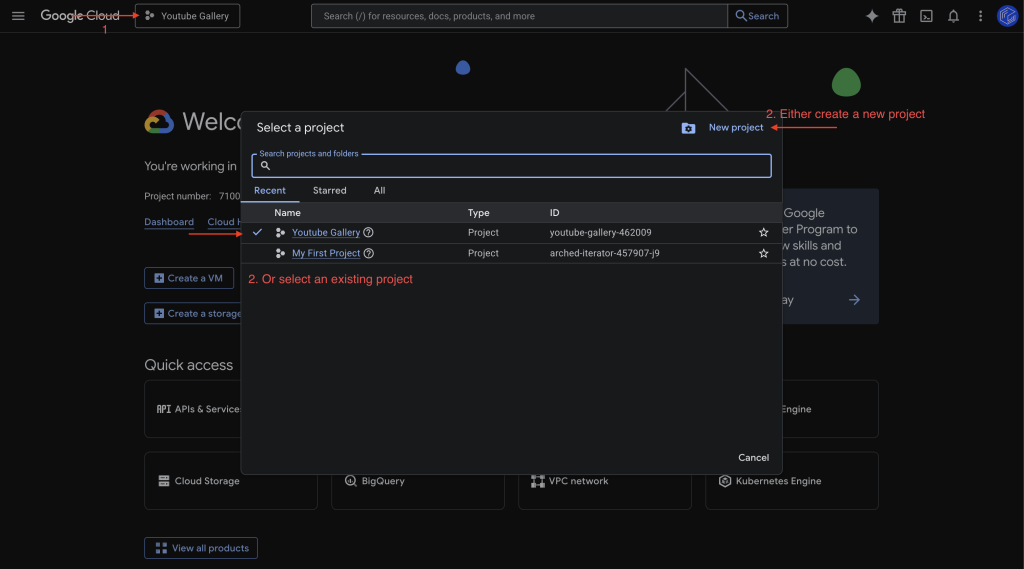
- Give your project a meaningful name (e.g., “My YouTube App”) and click Create. Ensure the new project is selected in the drop down menu after creation.
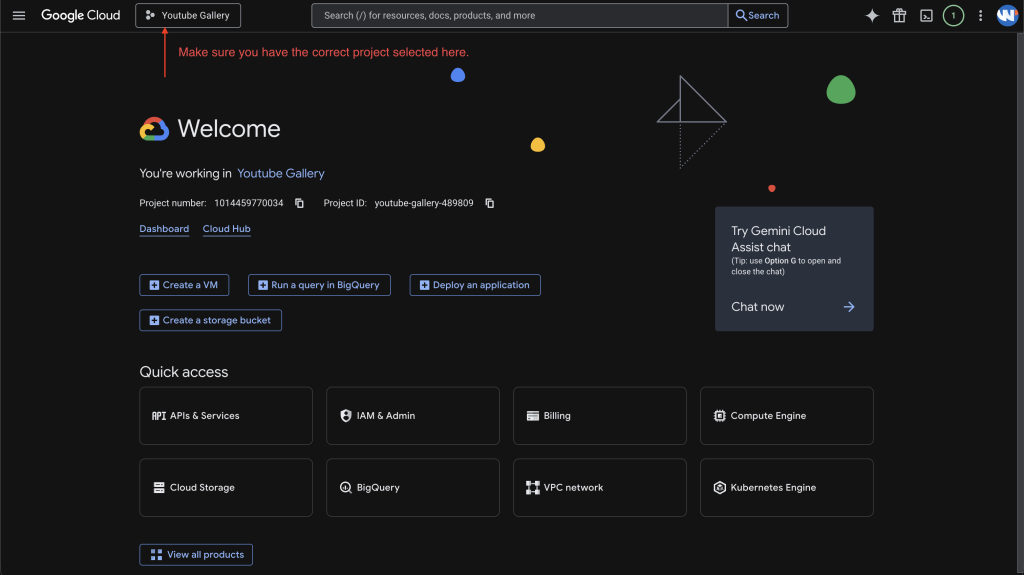
Step 3: Enable the YouTube Data API v3 #
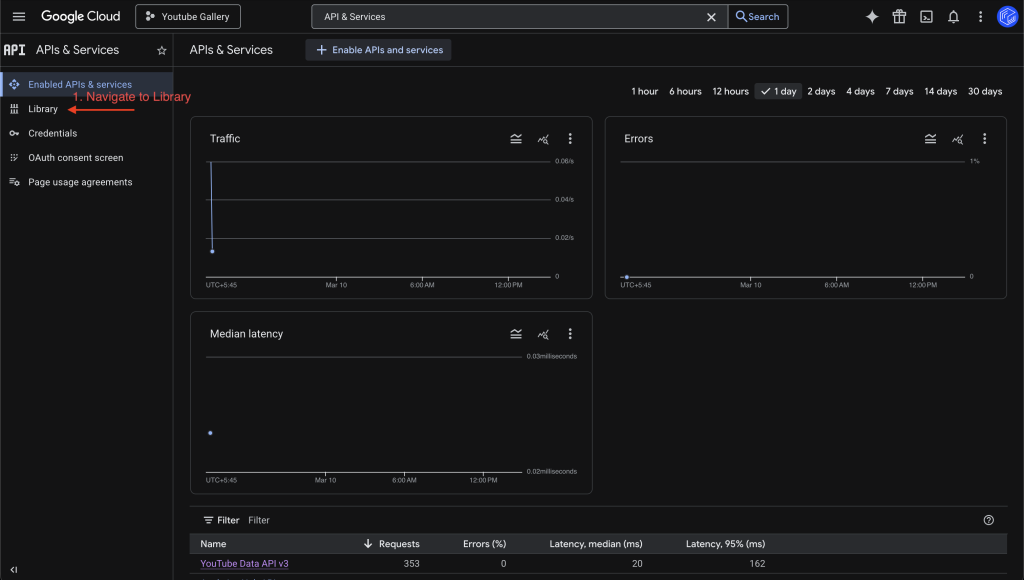
- Search for APIs & Services in the search bar.
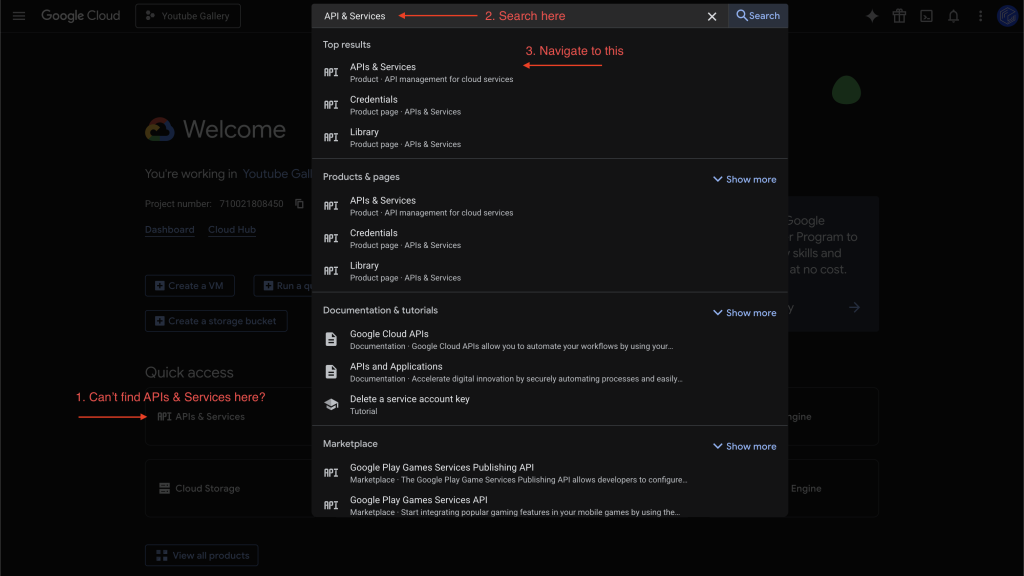
- Navigate to APIs & Services > Library
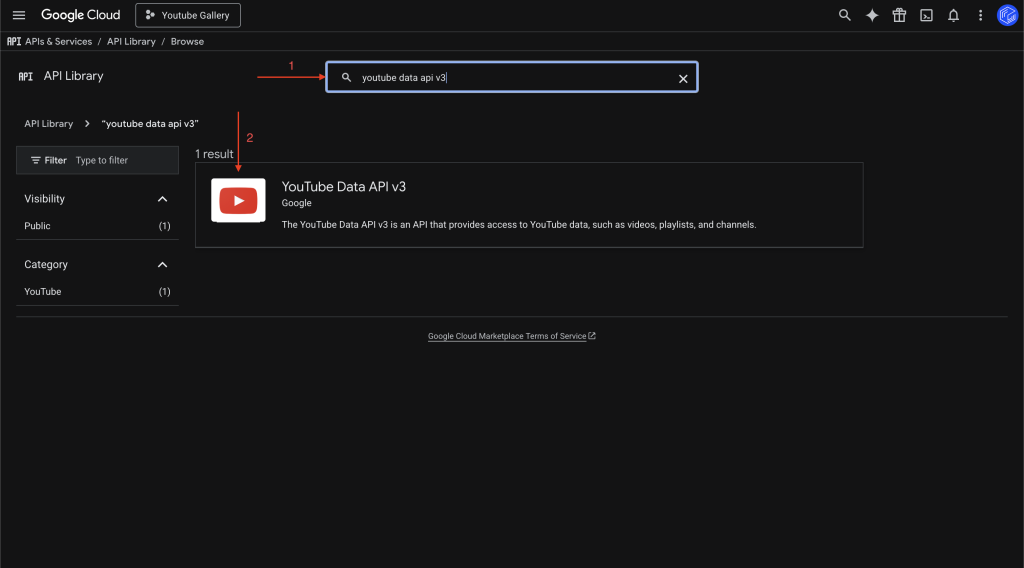
- In the search bar, type “YouTube Data API v3” and select it from the results.
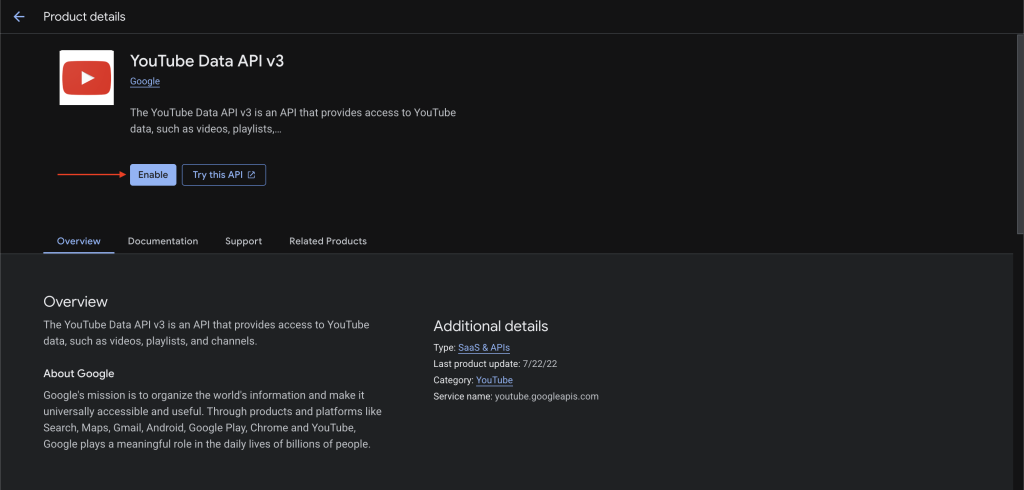
- On the API’s page, click the Enable button. This gives your project permission to access YouTube’s data services.
Step 4: Create API Credentials #
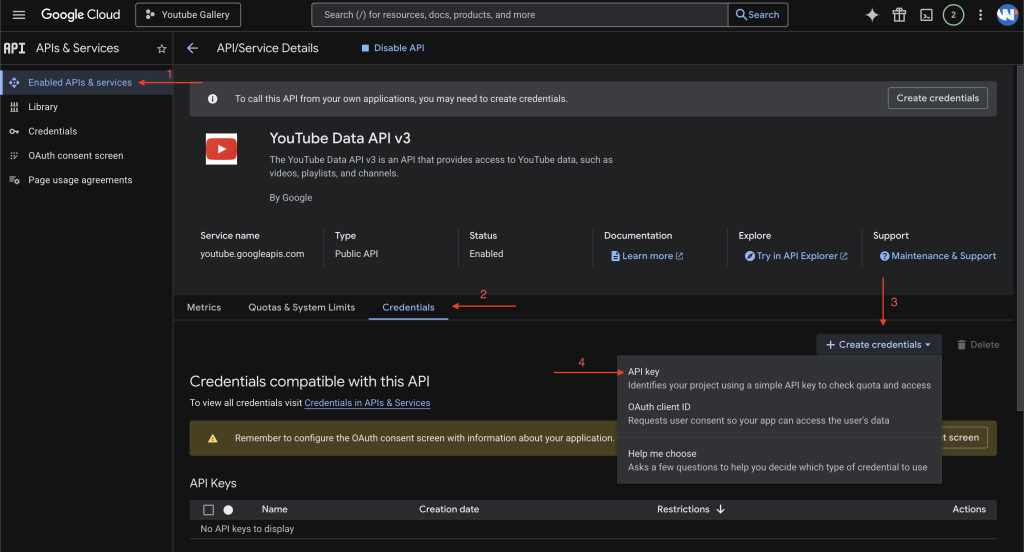
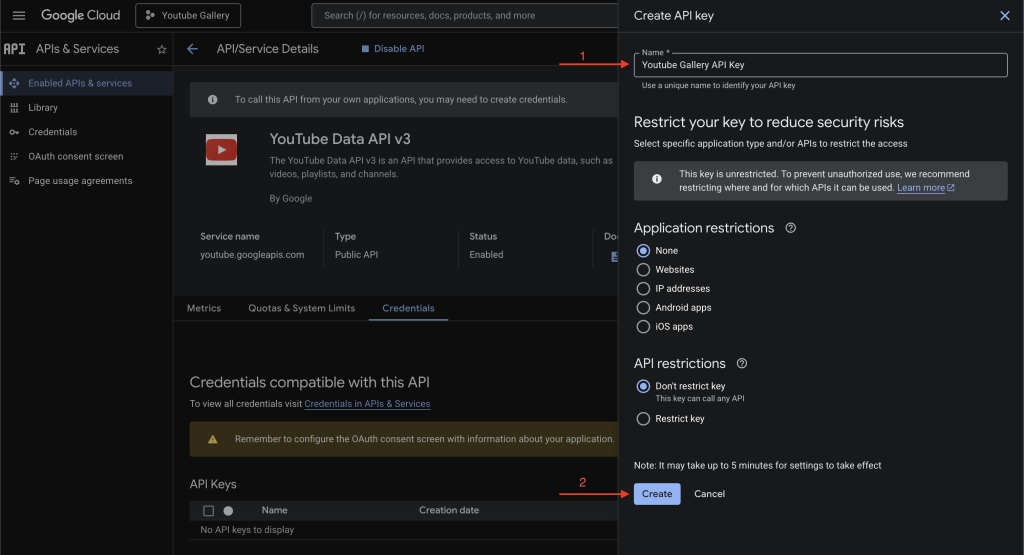
- After enabling the API, navigate to APIs & Services > Credentials from the left-hand menu.
- Click the + Create credentials button at the top and select API key from the dropdown menu.
- A pop-up will display your newly generated API key (a long string of characters). Copy this key and store it securely.
Step 5: Restrict Your API Key (Recommended) #
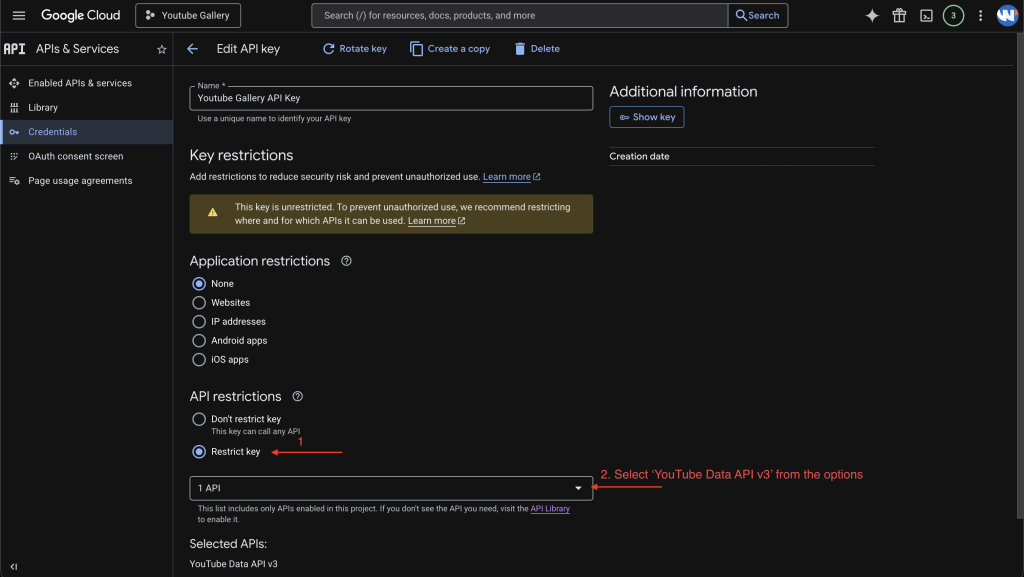
- For security, it is highly recommended to restrict your key to prevent unauthorized use. In the pop-up (or by clicking the key name on the Credentials page), click Restrict key.
- Under “API restrictions,” select Restrict key and choose the YouTube Data API v3 from the list.
- Under “Application restrictions,” select the appropriate type (e.g., HTTP referrers for web apps, IP addresses for server apps, Android/iOS for mobile apps) and provide the necessary details.
- Click Save to apply the restrictions.